


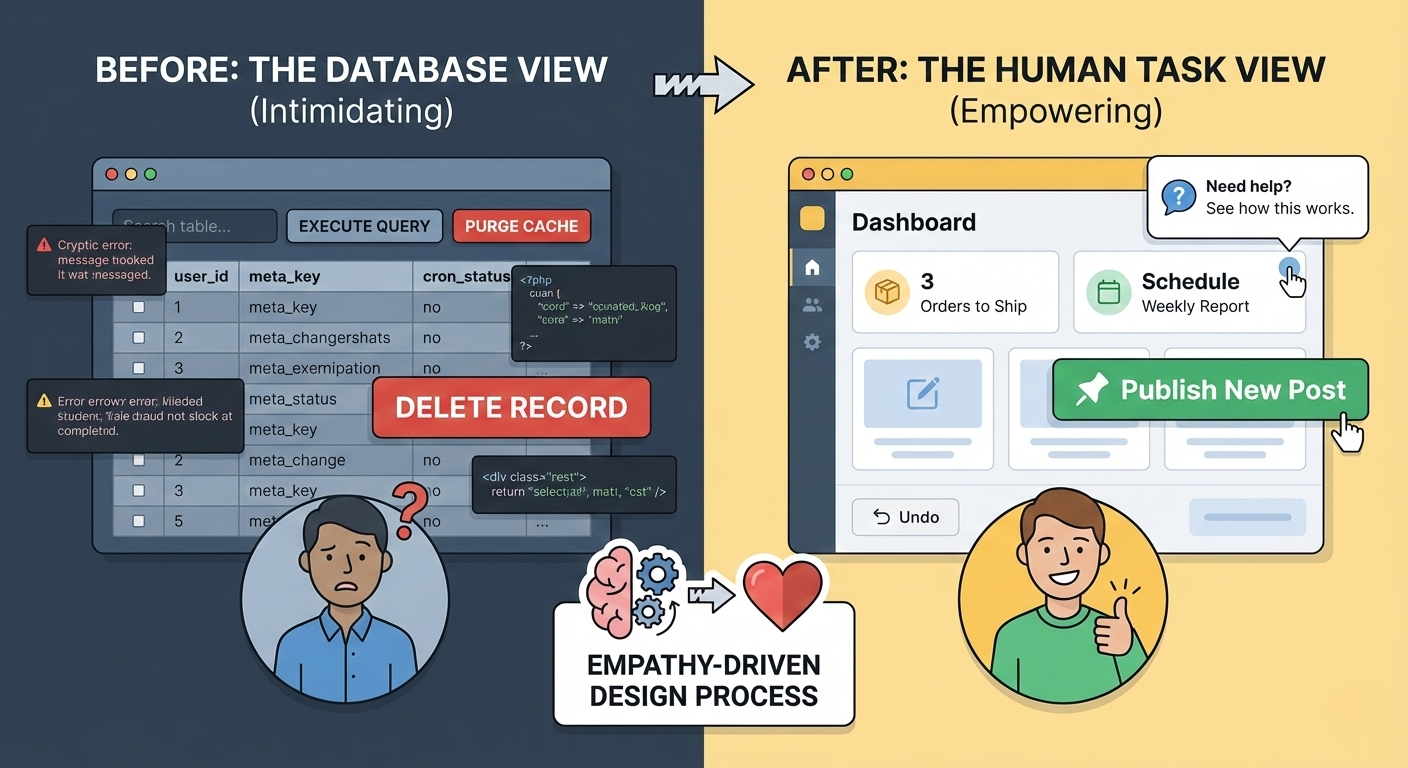
Your internal tools are the engine room of your business. Why are you forcing your crew to operate them in the dark?
We have all seen it. The company’s public-facing website is sleek, modern, and optimized within an inch of its life for conversion.
Then, you log into the backend.
The admin panel—the CMS, the CRM, the internal dashboard where the actual work happens—looks like a spreadsheet that exploded circa 2005. It’s a terrifying landscape of cryptic dropdowns, unexplained checkboxes, and buttons labeled “Submit Query” right next to “DELETE ALL.”
For engineers and developers, these interfaces are manageable. They understand the underlying data structure. But for the marketing manager, the HR specialist, or the operations lead—smart professionals who just aren’t software architects—these interfaces are a daily source of anxiety.
When admin UIs are designed without empathy for the non-technical user, companies bleed money through slow workflows, constant retraining, and expensive errors.
At [Your Company Name], we believe the most crucial users of software are often the ones most afraid of breaking it. Here is our philosophy on designing back-office interfaces that empower, rather than intimidate, non-technical teams.
The Philosophy: Psychological Safety First
Before we draw a single wireframe for an admin panel, we establish our primary goal: Psychological Safety.
A non-technical user should never feel stupid while trying to do their job. They should never hesitate to click a button out of fear that they might take down the production website or irretrievably delete a customer record.
Our design process shifts the focus from “What is the most efficient way to expose the database?” to “What is the most supportive way to help the user complete a task?”
Here are the four pillars of our approach.
1. Eradicate Engineer-Speak (The “No Jargon” Rule)
The quickest way to alienate a user is to use language that belongs in a GitHub repository, not a business tool.
Developers think in terms of CRUD (Create, Read, Update, Delete) and database structures. Business users think in terms of tasks and outcomes.
We meticulously audit the interface for technical jargon and replace it with plain, conversational language suited to the user’s domain.
- Don’t say: “Execute Cron Job.”
- Do say: “Run Scheduled Report Now.”
- Don’t say: “Edit Record ID #452.”
- Do say: “Update Sarah Miller’s Profile.”
- Don’t say: “Post Slug.”
- Do say: “URL Path (e.g., my-new-post).”
If a user needs a computer science degree to understand a button label, the design has failed.
2. Build Guardrails and Safety Nets
The fear of “breaking something” is paralyzing. A good admin UI acts like a bowling alley with the bumpers up—it should be difficult to throw a gutter ball.
We design for error prevention rather than just error reporting.
- Destructive Actions: A button that deletes a year’s worth of data should not look the same as a “Save Draft” button. Destructive actions should be hidden inside menus, colored red, and require a two-step confirmation (e.g., typing “DELETE” to confirm).
- The Almighty “Undo”: Whenever possible, implement “soft deletes” or version history. Knowing they can undo a mistake gives users the confidence to explore the interface and work faster.
- Smart Defaults: Don’t make users configure 20 settings just to publish a simple update. Provide sensible defaults for 90% of use cases, and hide the complex stuff under an “Advanced Settings” toggle.
3. Design for Tasks, Not Tables
Bad admin UIs usually mirror the database structure. You see a list of “Users,” a list of “Products,” and a list of “Orders.”
Good admin UIs mirror the user’s daily workflow.
When we design, we interview the stakeholders to understand their actual jobs. A customer support agent doesn’t want to “browse the user table.” They want to “Find a customer’s recent failed payment.”
We design dashboards that are action-oriented. Instead of just showing data widgets, we show “Next Steps”:
- “3 Orders Awaiting Shipment”
- “5 Blog Comments Pending Approval”
- “Your Weekly Report is Ready”
Guide the user to their work; don’t make them hunt for it.
4. Contextual Help over Documentation
Nobody reads the 50-page PDF manual attached to the onboarding email. If your UI requires external documentation for basic tasks, it is too complex.
We believe in Just-in-Time Education. Help should be delivered exactly where the confusion is likely to occur.
Instead of a separate help section, we use tooltips, helper text below form fields, and slide-out panels that explain complex concepts right next to the UI element in question. If a user is staring at a complicated pricing configuration tool, a small “How does this pricing work?” link right next to it is infinitely more valuable than a generic FAQ page.
The Business ROI of Empathy
Investing in better admin UI design isn’t just about making things look pretty for internal staff. It has a hard ROI.
When tools are intuitive, onboarding new employees takes days instead of weeks. The volume of “How do I do this?” support tickets sent to your IT department plummets. Errors that cost the business money—like accidental deletions or incorrect publishing—become rare.
Your internal teams are experts in marketing, sales, and operations. Your software should help them leverage that expertise, not force them to become amateur technologists just to get through the day.
0 Comments